

Asset Tracker
Tying every field job to the right machine, from a scan of its asset ID to a tracker verified on site.
Back to Work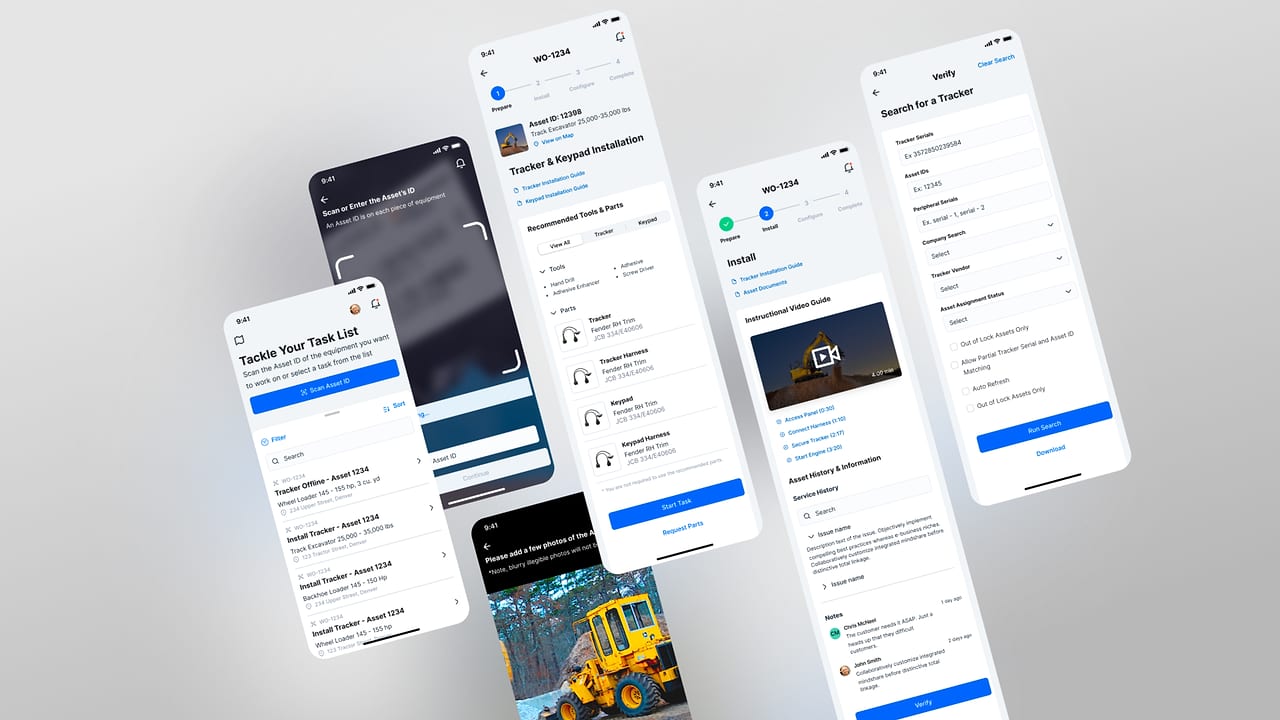
A construction equipment tracking provider sends technicians to fit and repair trackers on job sites, where a wrong machine, a missing part or a faulty install means a second visit. I shaped their field app around a four-step work order: identify the machine by its asset ID, prepare, install and verify the tracker. Problems surface on site, not after the technician has left.
In numbers
These are product scope numbers from the delivered design. Job, fleet and service data belong to the client, so they are not shared here.
The problem
The client fits trackers and keypads to its customers' construction machines and repairs trackers that go offline. Each job means a technician at a machine on a job site. A wrong machine, a missing part or a faulty install means a second visit and the machine out of work again. Until the tracker reports, the customer can't track that machine.
Technicians work through a list of jobs across sites, on a phone, next to the machine. Machines of the same model look alike, and one site can hold several of them. The asset ID on each one is what tells them apart.
An asset list alone would not prevent a second visit. The app had to tie every job to the right machine, give the technician what the job needs, and confirm the tracker works while they are still on site.
Goals
-
The right machine, every time
Every job starts from the asset ID on the machine itself, so the work lands on the right one.
-
Everything the job needs, at hand
Guides, recommended tools and parts, an install video and the machine's service history travel with the work order.
-
Proof before the job moves on
An install ends with a search for the new tracker, so a problem shows up while the technician is still at the machine.
My role
As the Product Designer, I worked with product management and the engineers on the field app, from the shape of the work order to the final screens.
Every screen had to work for one technician with a phone at a machine. It also had to give the business what it needs from each visit: the right asset, the right parts and a working tracker.
- Mapped the technician's job into a four-step work order, Prepare, Install, Configure and Complete, with product and engineering.
- Defined the ways into a job: scanning the asset ID, typing it in, or picking a work order from a list with sort, filter and search.
- Structured what each step carries: guides, recommended tools and parts, a chaptered video, service history and colleagues' notes.
- Shaped Verify as a tracker search with six fields, partial matching and auto refresh.
- Designed the screens: the task list, scanner, work order steps, photo capture and Verify.
Product decisions
-
Start every job from the machine
Machines that look alike are the easiest way to do good work on the wrong asset. So the task list leads with Scan Asset ID, and the scanner reminds technicians that an asset ID is on each piece of equipment. If a label won't scan, the ID can be typed in. Installs and offline-tracker repairs share one list, each with its machine, class and site address.
Trade-off: Scanning adds a step before every job. In return, the work is tied to the actual machine, not to a model name several machines share.
-
Make preparation the first step
A missing part turns one visit into two. So the work order opens on Prepare: the machine and its location, the tracker and keypad installation guides, and Recommended Tools & Parts. Request Parts sits under Start Task, so a gap shows up before work on the machine begins.
Trade-off: Recommended parts are not enforced, and the screen says so. The business gives up a fixed kit per job, and technicians keep the judgment the job needs.
-
Bring the machine's history to the job
Several people can work on the same machine across visits. So the Install step carries its context: the installation guide, asset documents, a chaptered install video, a searchable service history and notes from colleagues. A technician can see what was done to the machine before touching it.
Trade-off: The Install page gets long and scrolls. In return, a technician with the access panel open has one place to look.
-
Verify the tracker before moving on
A job is only done when the tracker reports. So Install ends with Verify, a search for the new tracker by tracker serial, asset ID, peripheral serial, company, vendor or assignment status. Partial matching helps when a serial is hard to read, and auto refresh keeps the search running while the tracker connects. The app also asks for photos of the asset and warns against blurry, illegible ones.
Trade-off: Verifying adds time to the end of every job. It costs less than a second trip to a machine whose tracker never came online.
Impact
-
For the client
Each job is tied to a machine's asset ID and ends with a tracker search. Problems surface on site, not after the technician has left.
-
For technicians
One app from the task list to Verify: the right machine, its parts and history, and a guided install, on one phone.
-
For the team
One work order pattern in four steps, built from shared blocks: guides, parts, video, history and notes. New job types can reuse it.
What I'd do next
I would test the flow on a real job site, with gloves on and a patchy signal, before adding features. Alongside that, I would track first-visit completion, the share of jobs started by scan rather than a typed ID, and first-try Verify failures. Together they show where jobs still go wrong: the label, the parts or the install.